
Home / How it works
How it works
Set up in minutes. Score all night.
All you need is your dartboard, your phone and something to stand it on. DartsKEY talks you through the rest with live meters, so you don't need to measure anything.
- A standard dartboard
- iPhone iOS 17+ · Android 8.0+
- Tripod, stand or shelf
- Set up once
Four steps
Straight from your pocket to your first dart.
Place the phone
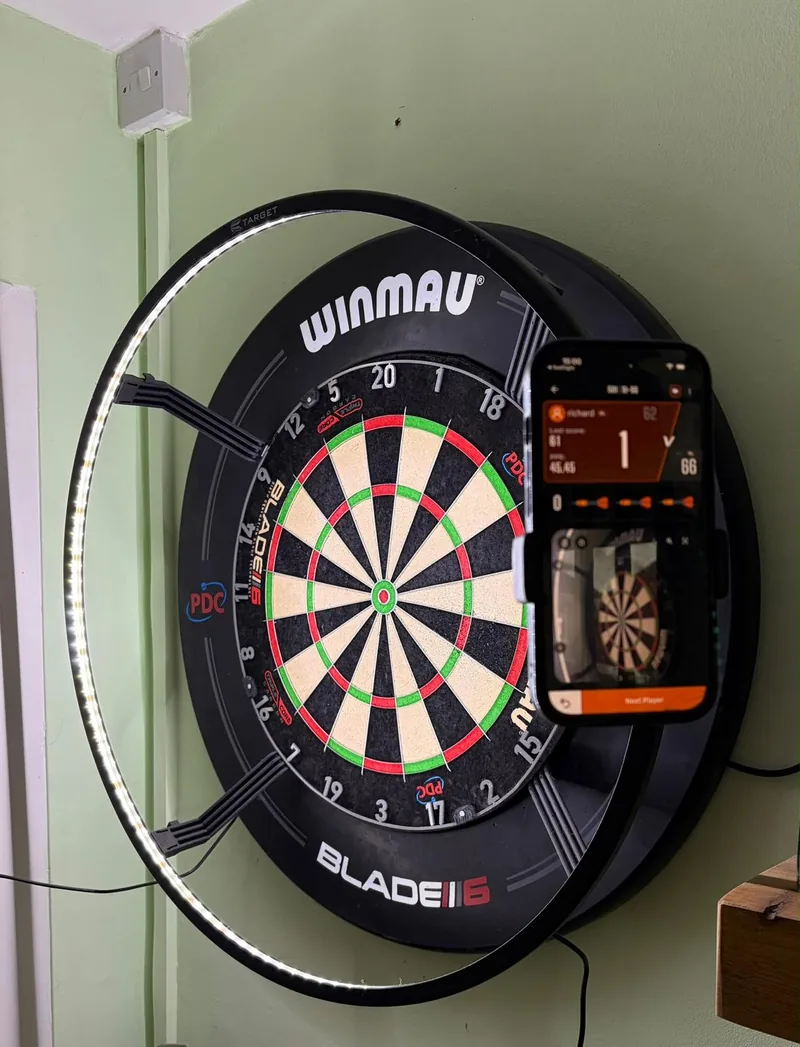
Beside the board or in front of it and to one side: clamped to the surround, on a tripod, a stand or a shelf, wherever nobody will knock it. Get the whole board, number ring included, in the picture. A side angle works better than straight on, and it keeps the phone out of the way of your darts.
Line it up with the meters
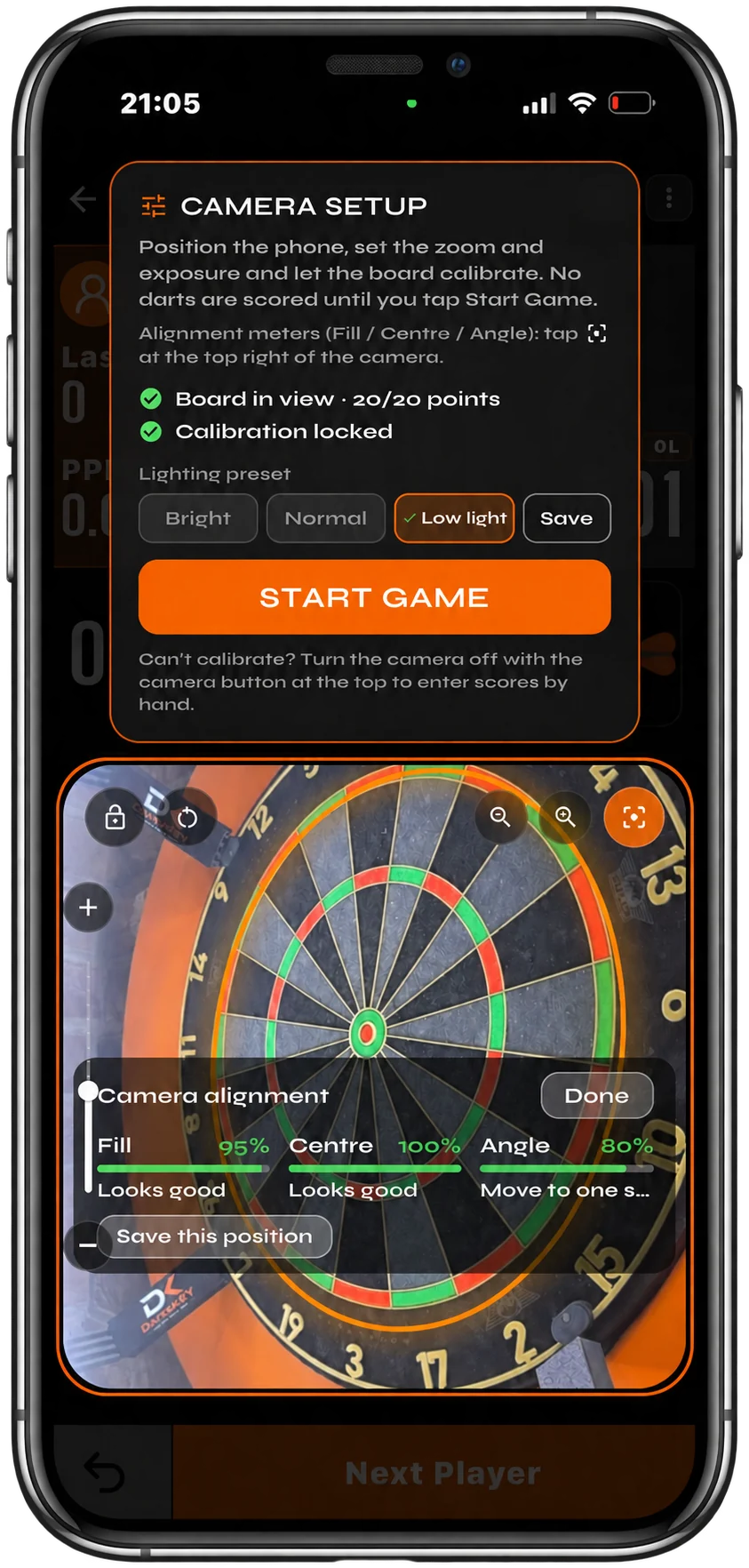
Start a game and tap the camera button (or switch on Auto Enable Auto Scoring in the side menu): Camera Setup opens. Its alignment panel shows three live meters. Fill: is the board big enough? Centre: is it in the middle? Angle: is the view too side-on or tilted? Follow the hints until they're green, then tap Save this position.
Sort the lighting
Even light on the board, no glare hot-spots. If DartsKEY says the board looks too dark or too bright, use the exposure slider and lock, then save it as a Bright, Normal or Low light preset.
Calibrate and play
When you see Board in view and Calibration locked, tap Start Game. Nothing is scored before that, so you can adjust freely.
From our players
Set-ups that work
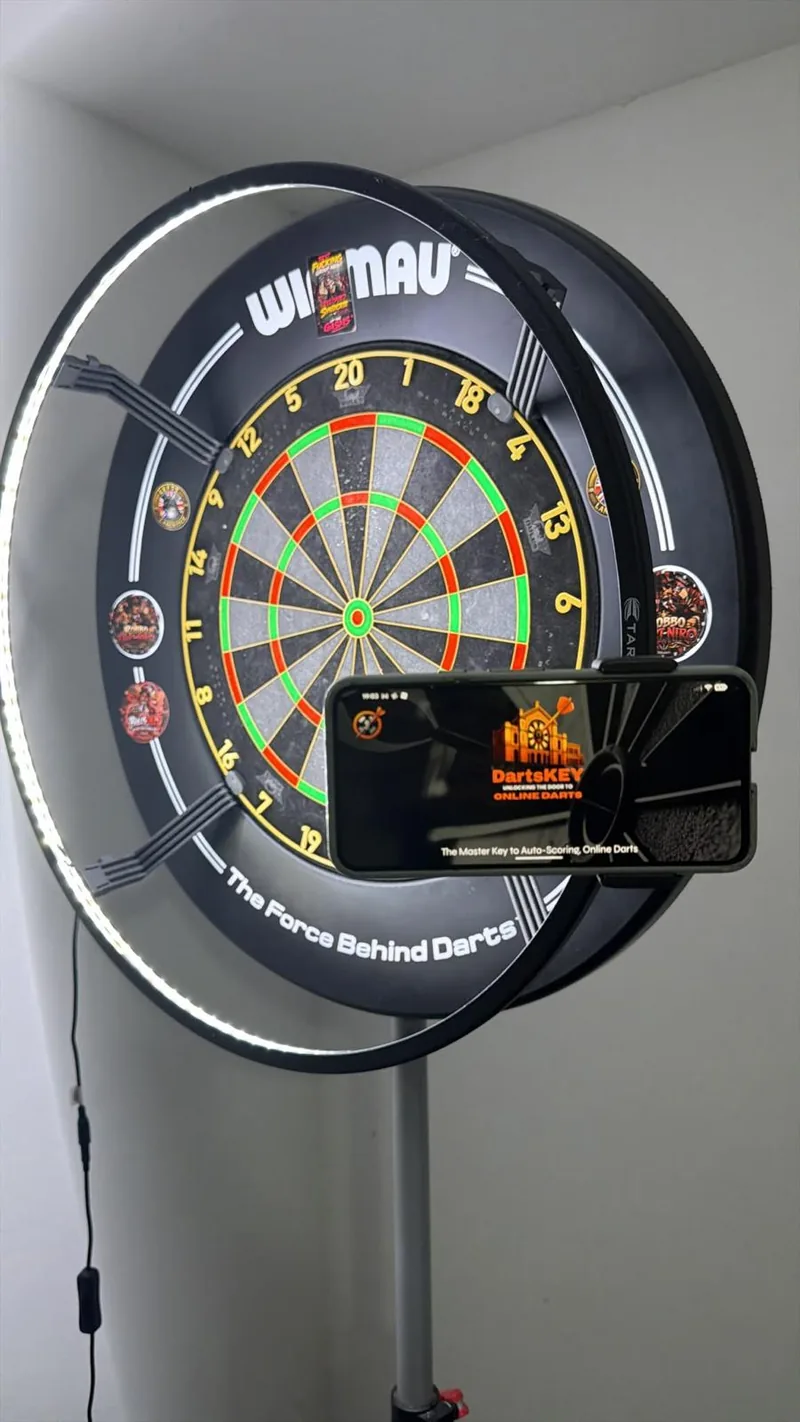
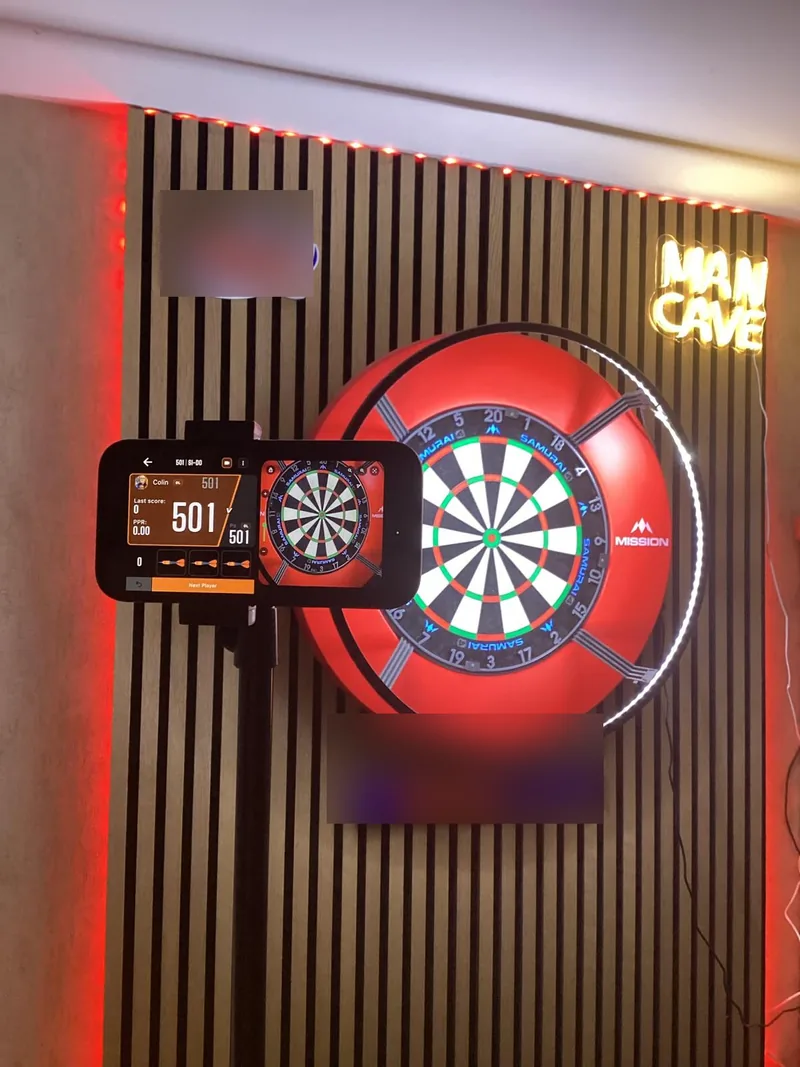
DartsKEY team players' own boards. Clamp, stand or tripod: what matters is a steady phone with the whole board in view.
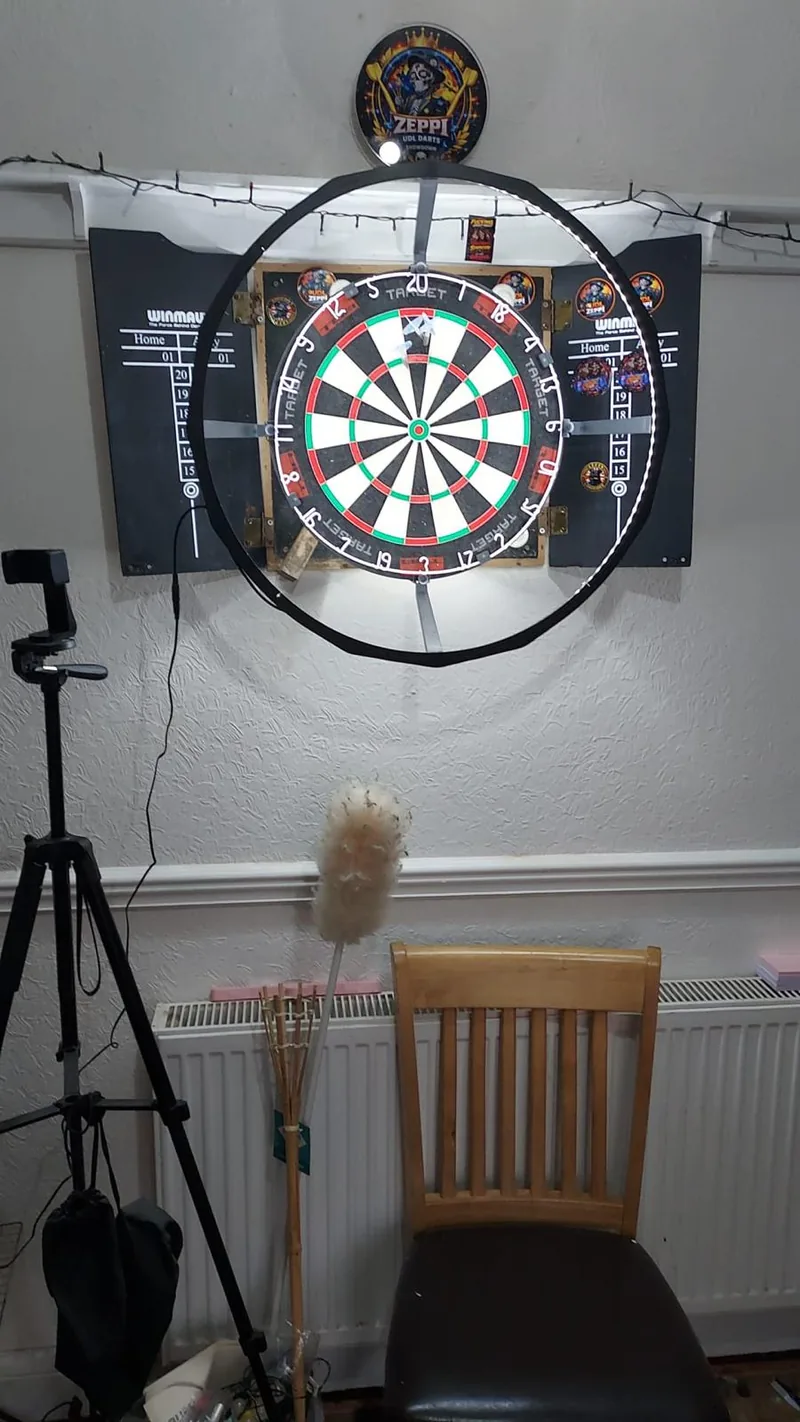
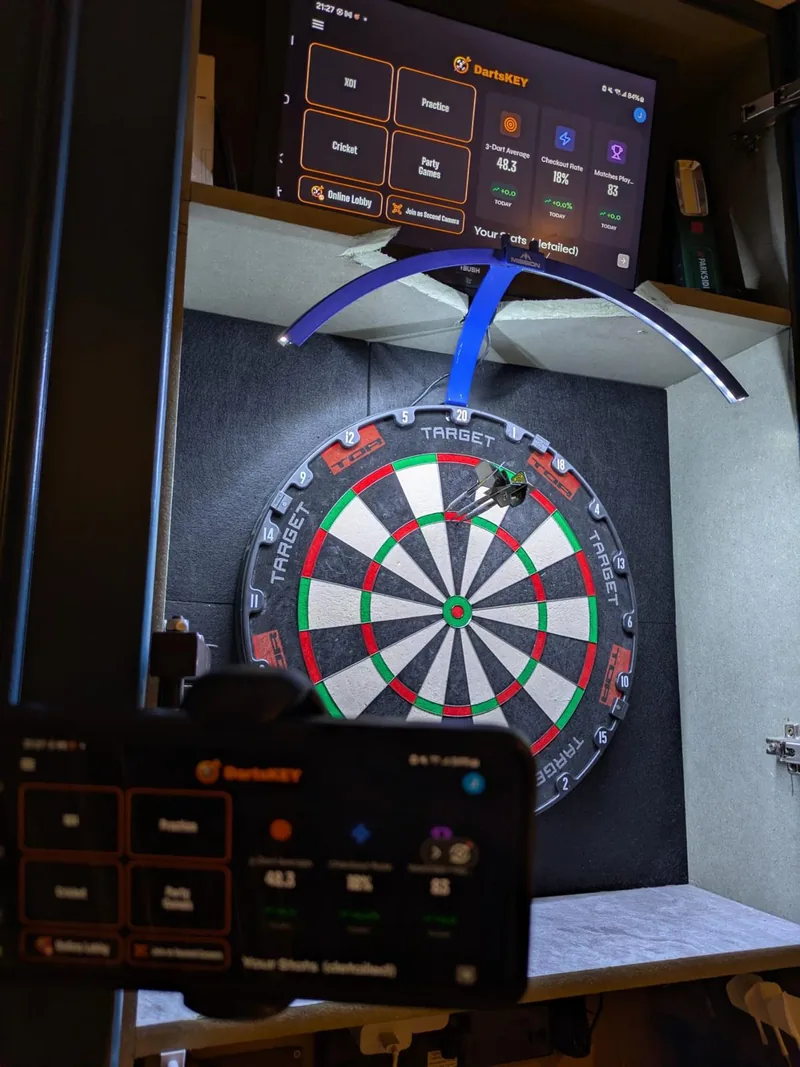
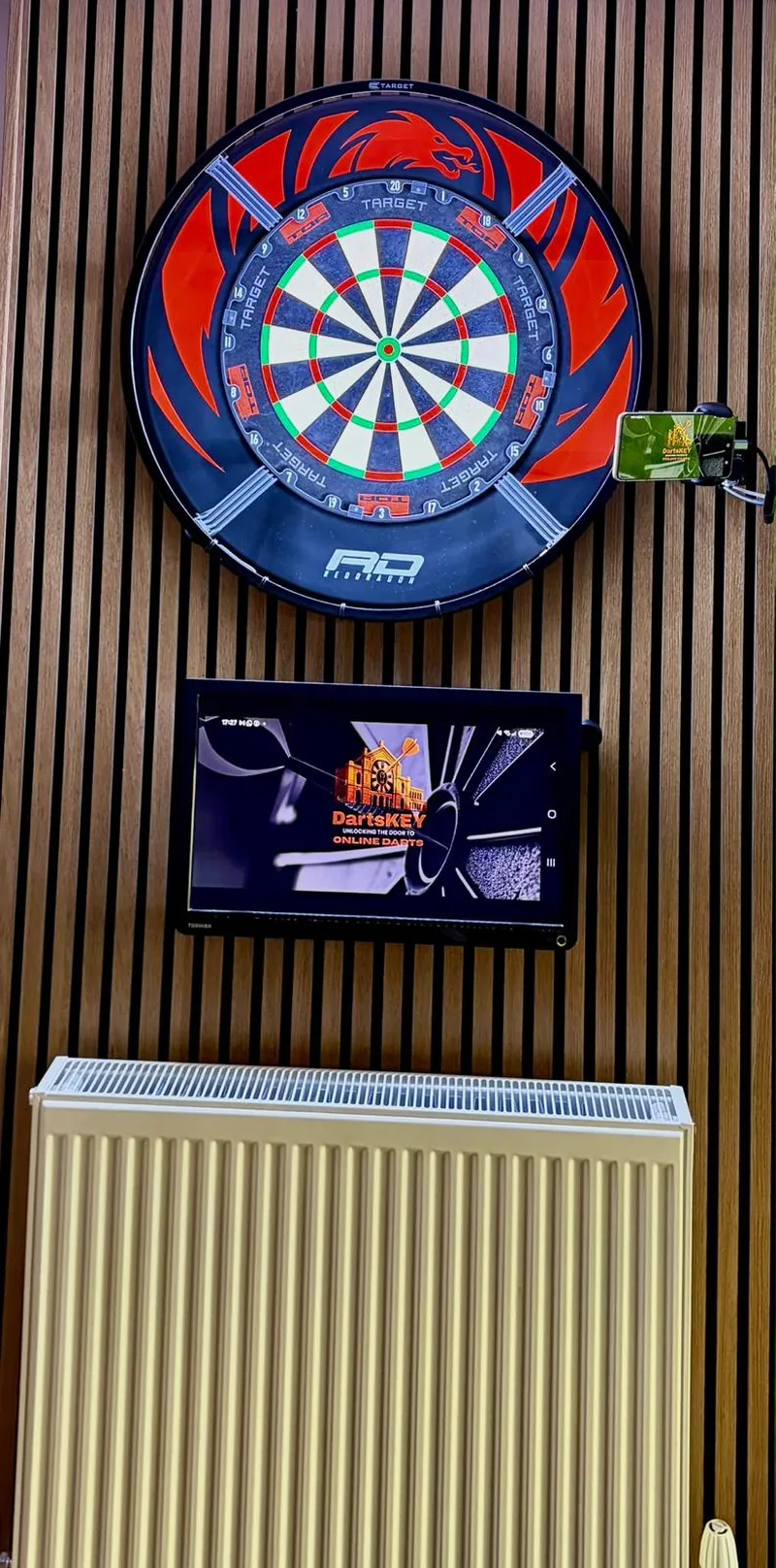
The alignment guide
Green means good to go
The meters open once at the start of each new game, and any time from the alignment button on the camera screen.
- Fill: “Move closer or zoom in”, “Move back or zoom out”, “Keep the whole board in view”
- Centre: “Move left”, “Move right”, “Move up”, “Move down”
- Angle: “Reduce the side angle”, “Move to one side of the board”, “Rotate left / right”
- Saved position: if the phone gets moved, the guide tells you which way to put it back
Green is good, amber needs a nudge, red stops calibration until it's fixed.
During the game
Throw. Check. Pull.
- Throw your darts. Each one appears on screen as it lands, and the caller announces it.
- Check the visit. After the third dart you see all three before the round is finished.
- Fix anything in one tap. Tap a dart and choose the right segment on the board or the number chart.
- Pull your darts. The turn passes once the board is clear, or tap to skip.
You can change how this works in the settings: switch off waiting for darts to be removed, use the number chart for corrections, or stop counting an early-pulled visit as misses.
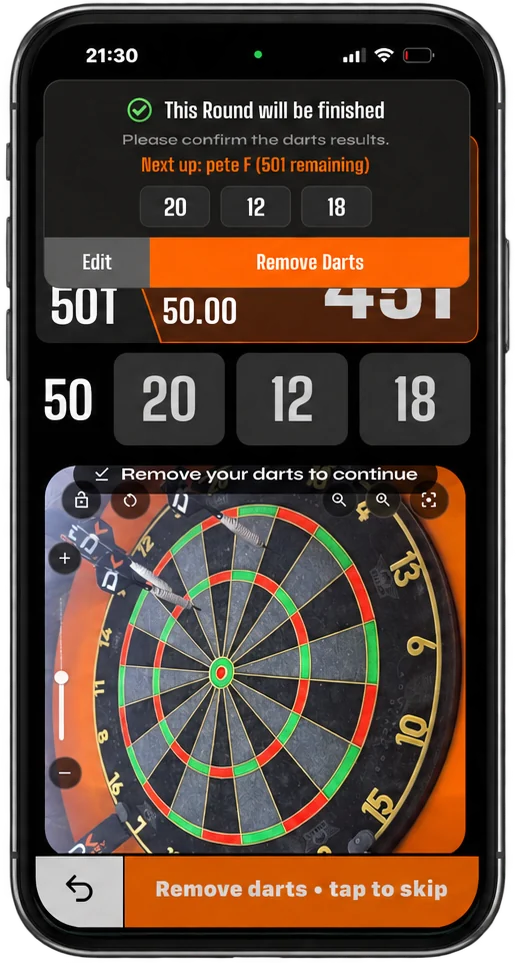
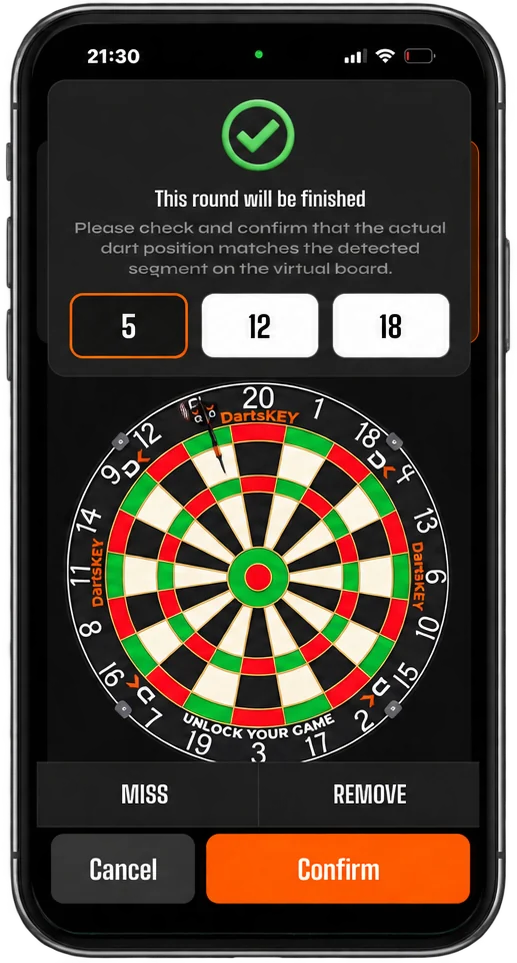
This example shows a 20 corrected to a 5.
Before you throw
Set-up checklist
Do
- Keep the phone completely still: surround clamp, tripod, bracket or shelf
- Show the whole board and number ring, filling most of the picture
- Sit the phone to one side of the board
- Light the board evenly (a ring light is ideal)
- Keep the 20 at the top: the line from 20 to 3 should look roughly vertical
- Save this position and your lighting preset for next time
Avoid
- Holding the phone in your hand
- A view so far to the side that the board looks like a thin oval
- A bright lamp reflecting straight off the board
- Zooming in so far that the doubles touch the edge of the picture
- Standing between the phone and the board while you throw
Troubleshooting
What the messages mean
“Adjust the camera to make the full dartboard visible”
Part of the board is outside the picture. Move the phone back or zoom out until the whole number ring is visible.
“Please move the camera closer or increase the zoom level”
The board is too small in the frame. Move closer or zoom in until the Fill meter goes green.
“The video is too tilted”
Straighten the phone so the line between the 20 and the 3 is roughly vertical on screen.
“Camera is too far to the side”
Move the phone a little towards the front of the board. A slight angle is good; a very side-on view isn't.
“Glare on the board” or “Board looks too dark / too bright”
Move or dim the lamp, tilt the phone slightly, or use the exposure slider on the left of the camera view. Save what works as a lighting preset.
It won't calibrate at all
Check the light and the Fill meter first. You can always keep playing: turn the camera off with the camera button and enter scores by hand. Still stuck? Tell us your phone and board and we'll help.
Unlock your game.
Put your phone by the board and let DartsKEY keep score. You just throw.
iPhone Android Coming soon to the App Store and Google Play